Ideas scattered everywhere?
Give your content a home
I keep YouTube ideas, scripts, and publishing dates together. A video can move from idea to published in the same database.

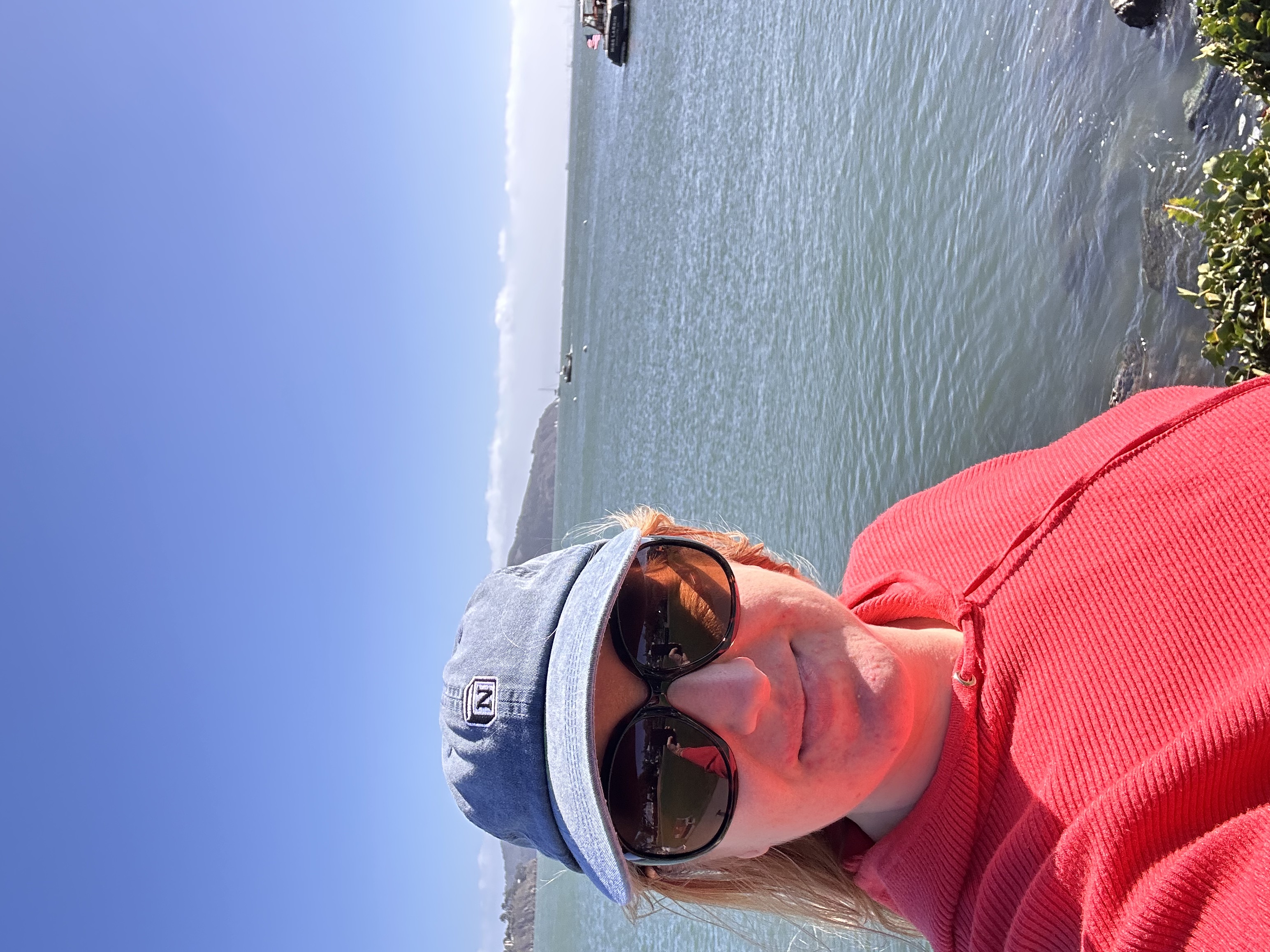
I’m Jenna Redfield, a Notion Ambassador. Notion is where I plan my content, manage clients, and keep track of the details I’d otherwise forget.
This is an affiliate link. I may earn a commission if you make a qualifying purchase through it.
Notion and Notion Calendar are both free. Download both to your desktop so they open in one click, right next to your other apps.
Sign up for Notion’s free plan. It takes about a minute.
Try Notion free →Get the Notion desktop app for Mac or Windows and sign in with your new account.
Download Notion →A free calendar app that syncs with Google Calendar and shows your Notion deadlines next to your meetings. Download it to your desktop too.
Download Notion Calendar →Notion is a workspace for notes, documents, projects and databases, with Notion AI built right in. My whole business runs in it, and so does my personal life. Everything connects, so one database can show up in lots of places. It’s my second brain.
Use Notion when you need a place to keep information, connect it, and come back to it. It’s where I keep the systems I use to run my business and my life.
Pages, checklists, and databases are your bricks. Start with one piece, like a list of video ideas. Add a status and a date when you need them. Now those same ideas can show up on a production board or a calendar, without copying them into a second list.
Ideas scattered everywhere?
I keep YouTube ideas, scripts, and publishing dates together. A video can move from idea to published in the same database.
Unsure what to do next?
I keep tasks, goals, and deadlines together, then use a weekly view to see what needs my attention.
Forgetting who to follow up with?
I connect contacts, projects, and meeting notes so I can pick up where we left off.
Tired of deciding what’s for dinner?
I keep recipes, groceries, and what’s in the fridge together. I use the same idea for my wardrobe and routines.
Saved it but can’t find it?
I keep screenshots, PDFs, books, and frameworks in a place I can search when I need them.
Notion is where I keep the plan, reference material, and next steps.
Claude or ChatGPT can help me brainstorm, think through a problem, or draft something. I bring the useful output back to the relevant project in Notion.
Notion AI can help with work already in my workspace, like finding a saved note or pulling action items from meeting notes.
Start here. Pick one thing you keep losing track of and make a single page for it. Add more when you know what you need.
I used to keep these notes, references, and planning documents in Google Drive. Now I keep them in Notion, where I can connect them to the projects and tasks they belong to.
I can ask Claude or ChatGPT to help plan a video or suggest an outfit. Notion gives those ideas a place to live alongside my projects, deadlines, and photos, so I can find and update them the next time I need them.
My YouTube ideas, scripts, and publish dates live in one database. I can switch between a production board and a calendar without updating two lists.
A client’s contact record connects to their projects, meeting notes, and follow-ups. I can open their page before a call and see where we left off.
I use Notion Calendar to see dated tasks and content deadlines alongside meetings while I plan my week.
I keep photos of clothes and accessories in a wardrobe database. I can pull up my scarves or shoes, then save outfit combinations to reuse.
I keep recipes, grocery lists, and what’s in the fridge in Notion so I can check what I have before deciding what to cook or buy.
I tag screenshots, PDFs, and frameworks in a searchable library so I can find the original reference when I’m writing or teaching.
My TABStack OS organizes life and business into 13 pillars, with places for tasks, client work, content, home, and learning. I can go straight to the part I need.
Give yourself one page to open when you feel scattered.
Review what’s overdue and choose what matters this week.
Catch ideas from screenshots, voice notes, and texts.
See deadlines, next steps, and what you’re waiting on.
Save links and references somewhere you can find them again.
Get the free Notion Starter Kit →
Save the tutorial you want to reference.
Keep the webinar date, plan, and materials together.
Add a concrete next step, like testing the signup link.
Link to your signup platform for the current number.
Everything on that list lives in TABStack OS, my Notion life and business tracker. Once Notion is on your desktop, pick a template and duplicate it into your workspace so you’re not starting from a blank page.
Browse my Notion templates →

I’ve used Notion since 2021 and became Minnesota’s first official Notion Ambassador in 2022. Through workshops and office hours, I help entrepreneurs build systems around how they actually work. In my own workspace, that means keeping client notes, content ideas, and everyday lists somewhere I can find them again.
Say you screenshot a useful content framework. Here’s how to turn it into something you can use.
Save the screenshot in your Notion resource library.
Use Notion AI to pull out the main idea and give it a title you’ll recognize.
Link it to a draft post or workshop outline so it’s handy when you sit down to create.
Find saved screenshots, PDFs, and notes with Notion AI.
Watch on YouTube →Organize video ideas and production in one workflow.
Watch on YouTube →Bring Apple Health data into Notion and visualize it with Claude.
Watch on YouTube →Learn pages, databases, and views step by step, then put them to work with my TABStack OS template.